How to trade on iX Broker(Mobile)
- Home Page
- How to trade on iX Broker(Mobile)
How to trade on iX Broker(Mobile)
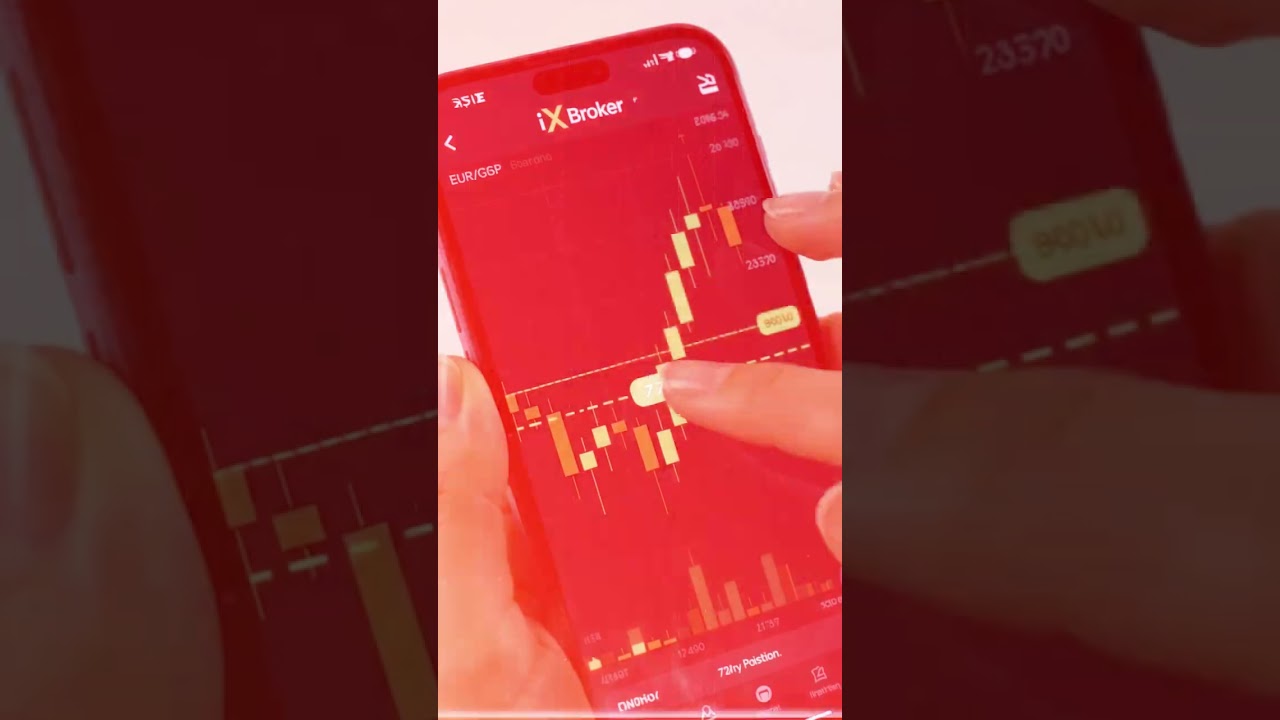
🎥 How to Trade on the ix Broker Trading Platform
🟢 Step 1: Selecting a Trading Instrument
After logging into the platform, tap Market in the bottom navigation bar.
On the page that opens, you can select different market categories from the top of the screen.
You can also use the search bar at the top to find your desired trading instrument.
Once you select an instrument, its price chart and relevant trading information will be displayed.
🟢 Step 2: Opening a Trade
To place an order, tap Buy or Sell at the bottom of the screen.
Selecting either option will open the order placement window.
First, choose your preferred order type.
You can select one of the following:
• Market Order
• Pending Order
🟢 Step 3: Setting the Trade Volume
Next, specify your desired trade volume in the Volume section.
Once you select the volume, the following information will be displayed:
• Trade Volume
• Trade Value
• Required Margin
Review the displayed information and select your preferred trading volume.
🟢 Step 4: Setting Stop Loss and Take Profit
If needed, enable the Stop Loss and Take Profit options.
You can set your Stop Loss and Take Profit levels using one of the following methods:
• Profit or Loss Amount
• Price Level
• Percentage of Account Balance
Once you have entered all the required information, tap the blue Buy or Sell button to place your order.
🟢 Step 5: Managing Open Positions
After placing your order, navigate to Positions using the bottom navigation bar.
Under the Open Positions tab, all your active trades will be displayed.
By selecting any position, you can:
• View trade details.
• Modify Stop Loss and Take Profit levels.
• Save your changes.
🟢 Modifying Stop Loss and Take Profit Directly on the Chart
One of the platform’s useful features is the ability to manage trades directly from the chart.
Select your position on the chart to display its trading information.
You can then drag and move the Stop Loss and Take Profit lines on the chart to adjust their levels.
🟢 Closing a Position
There are two ways to close a trade.
You can close a position directly from the trading chart by tapping the Cross (×) Icon.
Alternatively, navigate to the Open Positions section, select the desired trade, and tap Close.
If necessary, you can also close only part of your trading volume.
Simply enter the volume you wish to close and confirm your closing request.
🟢 Viewing Closed Trades
After closing a trade, navigate to the Positions section and open the Closed Positions tab.
Here, you can review the complete details of your closed trades, including profit, loss, and other relevant information.
🟢 Placing Orders Directly from the Chart
The mobile version of the ix Broker platform also allows you to place orders directly from the chart.
To do this, press and hold your finger on the chart until the Plus (+) Icon appears.
Then tap the Plus (+) Icon to open the order placement window.
Next, enter your order details and submit your trade.